
Doorbell Camera No Subscription: Storage Options and Setup
A doorbell camera with no subscription saves video to a microSD card, hub or NVR. Compare the three, see which features stay free, and follow the setup checklist.
The Cobalt Hollow Team
October 30, 2026 · 7 min read
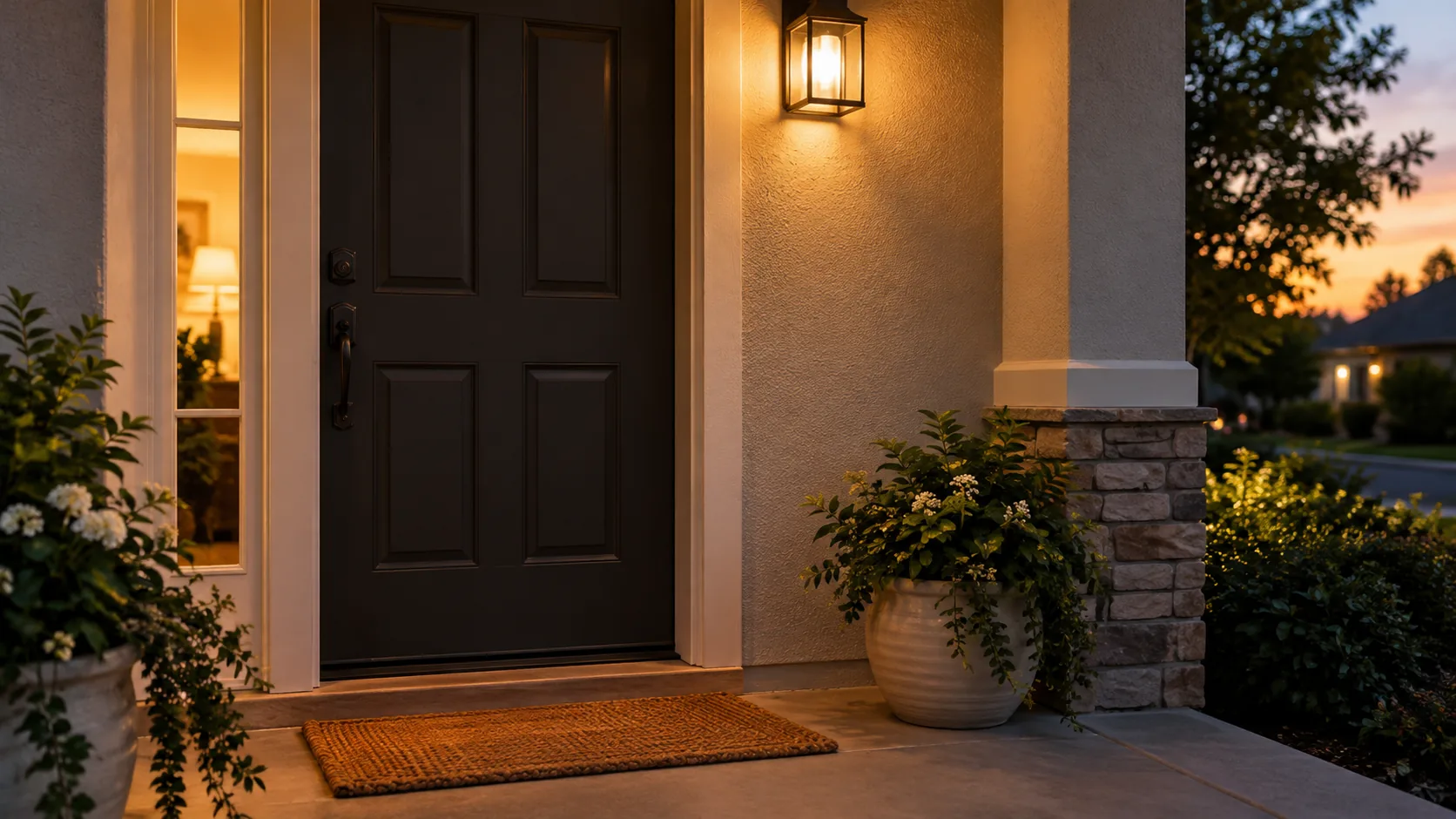
A doorbell camera no subscription setup works by saving video on hardware you own: a microSD card in the doorbell, a hub, or a network video recorder (NVR). Alerts, live view and two-way talk then run through the phone app without a monthly plan. This guide compares the three storage options, lists which features stay free, and ends with a setup checklist.
The short version: pick the storage type first, then check power and Wi-Fi at your door. Everything else follows from those two choices.
Doorbell camera no subscription: three ways to store video
Cloud-based models keep recorded history on the maker's servers, and some put that history behind a paid plan. Local storage skips that step because footage is saved on hardware inside your home.
Each local option trades off cost, wiring and how much footage you can keep. Use the table to match one to your door.
| Storage type | Where video is saved | Wiring | Fits when |
|---|---|---|---|
| microSD card | Card inside the doorbell | None needed for battery models | You want one doorbell and a simple setup |
| Hub or base station | Storage inside a small unit plugged in indoors | Power outlet for the hub | You want footage kept away from the door |
| NVR with PoE | Recorder with hard drive, often shared with other cameras | Ethernet cable from door to recorder | You already run, or plan, a multi-camera system |
microSD card
The card sits inside the doorbell, and you insert it yourself. The card capacity and the clip length set in the app decide how much footage fits, so check the manual for supported card sizes. If someone removes the doorbell, the card goes with it, which is the main weakness of this approach.
Hub or base station
A hub receives clips from the doorbell and stores them indoors. The footage sits in a separate place from the door, but you add one more device to power and place within range of the doorbell.
NVR and PoE
A PoE doorbell receives power and data over one Ethernet cable and records to an NVR. It suits a house where a cable run to the door is practical, and it fits beside other wired cameras. It is the most involved of the three to install.
Which features stay free with local storage
With a local-storage doorbell, the core features run on the device and your home network. Confirm each one on the product page before you buy, because makers differ.
- Motion alerts sent to your phone
- Live view from the app
- Two-way audio through the built-in speaker and microphone
- Night vision for after-dark viewing
- Playback of clips saved on the card, hub or recorder
- Person, package or vehicle sorting, where the model lists it
Cloud backup copies, extended off-site history and some advanced detection add-ons may still cost extra on any brand. If a feature matters to you, look for it by name in the specifications rather than assuming it is included.
A smart doorbell video clip saved locally can be opened in the app once the camera is paired with your Wi-Fi network. That pairing step is part of every setup below.
A microSD example: VistaBell
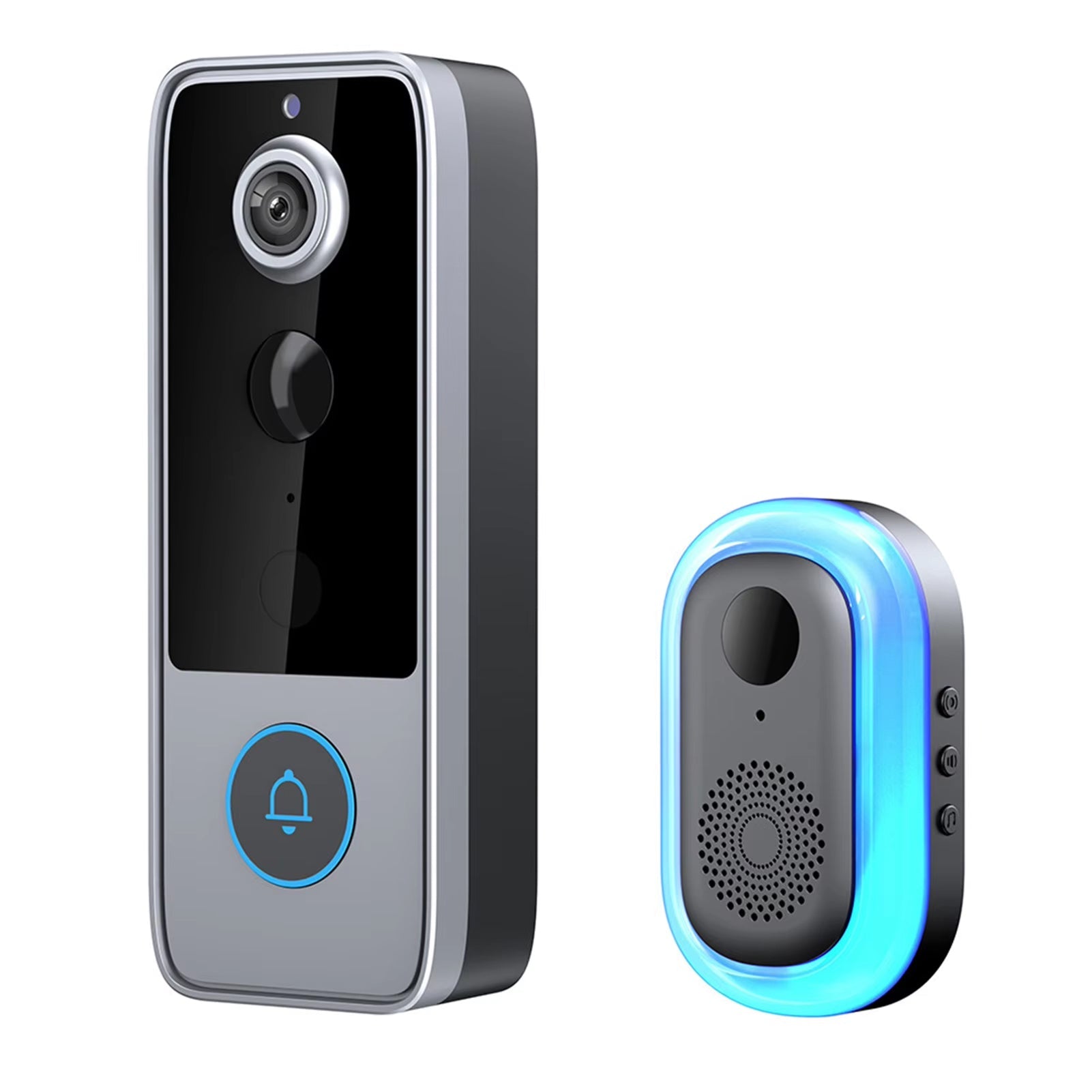
VistaBell is a battery-powered doorbell camera that saves clips to a microSD card you insert yourself. It has a 120° wide-angle lens with 1080P video, color and infrared night vision, a PIR motion sensor and two-way audio. The wide view covers the porch floor where packages are set down.
The camera sorts motion as a person, package or vehicle and saves the clip to local storage. Your phone receives alerts and opens a live view. A wireless indoor chime is in the box, along with a USB Type-C charging cable, a mounting hardware kit and the manual.
 In this guideVistaBell$79.99View
Wireless, wired and PoE: choosing the power source
Storage and power are separate decisions, but they interact. A battery model mounts without touching house wiring, while wired and PoE models need a cable path to the door.
| Power type | What you do | Keep in mind |
|---|---|---|
| Rechargeable battery | Mount with the hardware kit, charge over USB | Plan to remove and recharge the unit on a routine |
| Existing doorbell wiring | Replace the old button; follow the manual for the transformer | Turn off power at the breaker first, or ask an electrician |
| PoE Ethernet | Run a cable to a PoE switch or NVR | Needs a cable route through the wall or trim |
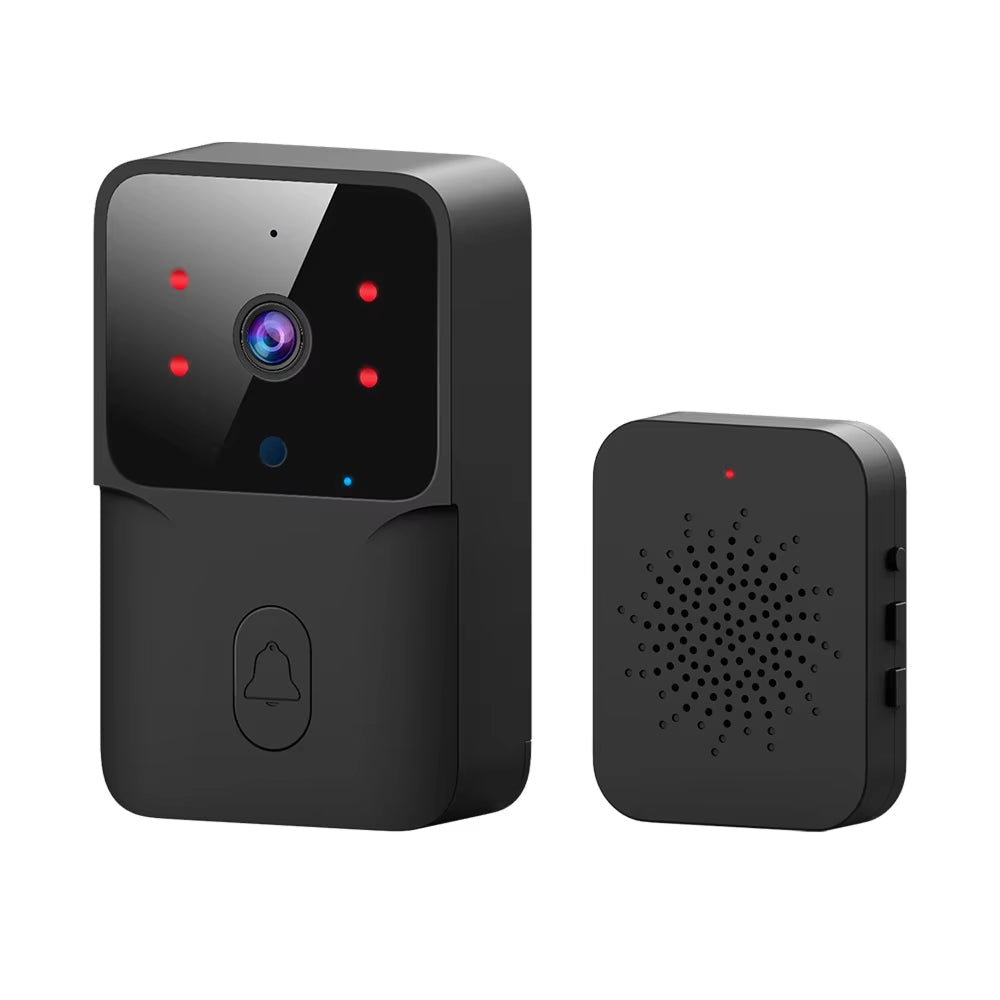
VistaBell runs on a 4000mAh battery that charges through a USB Type-C cable. Another battery option is DoorHalo, a Wi-Fi video doorbell that charges over USB and stores footage on the device instead of on a cloud storage plan. It has live video and two-way audio through the app, plus night vision.
 In this guideDoorHalo$89.99View
Storage choice and privacy
Where video lives is also a privacy decision. With a cloud plan, clips sit on the maker's servers under the maker's account terms. With local storage, clips sit on a card, hub or recorder that you hold, and you decide when to delete them.
Some people move away from cloud doorbells for this reason, or because recorded history sits behind a paid plan. Local storage does not remove every concern: the app account, your Wi-Fi password and the physical card still need attention.
- Use a strong, unique password for the doorbell app and your Wi-Fi network.
- Keep the doorbell firmware and app updated as the manual describes.
- Aim the lens at your own porch and walkway, not at a neighbor's windows.
- Delete clips you no longer need.
Check your door before you buy
Work through these steps in order. Each one rules out options.
- Stand at the door with your phone and check the Wi-Fi signal. A weak signal at the entrance can lead to dropped alerts, so plan a Wi-Fi extender if needed.
- Decide whether a cable can reach the door. If not, choose a battery model.
- Choose the storage type from the table above. For one doorbell, a microSD card is the direct route.
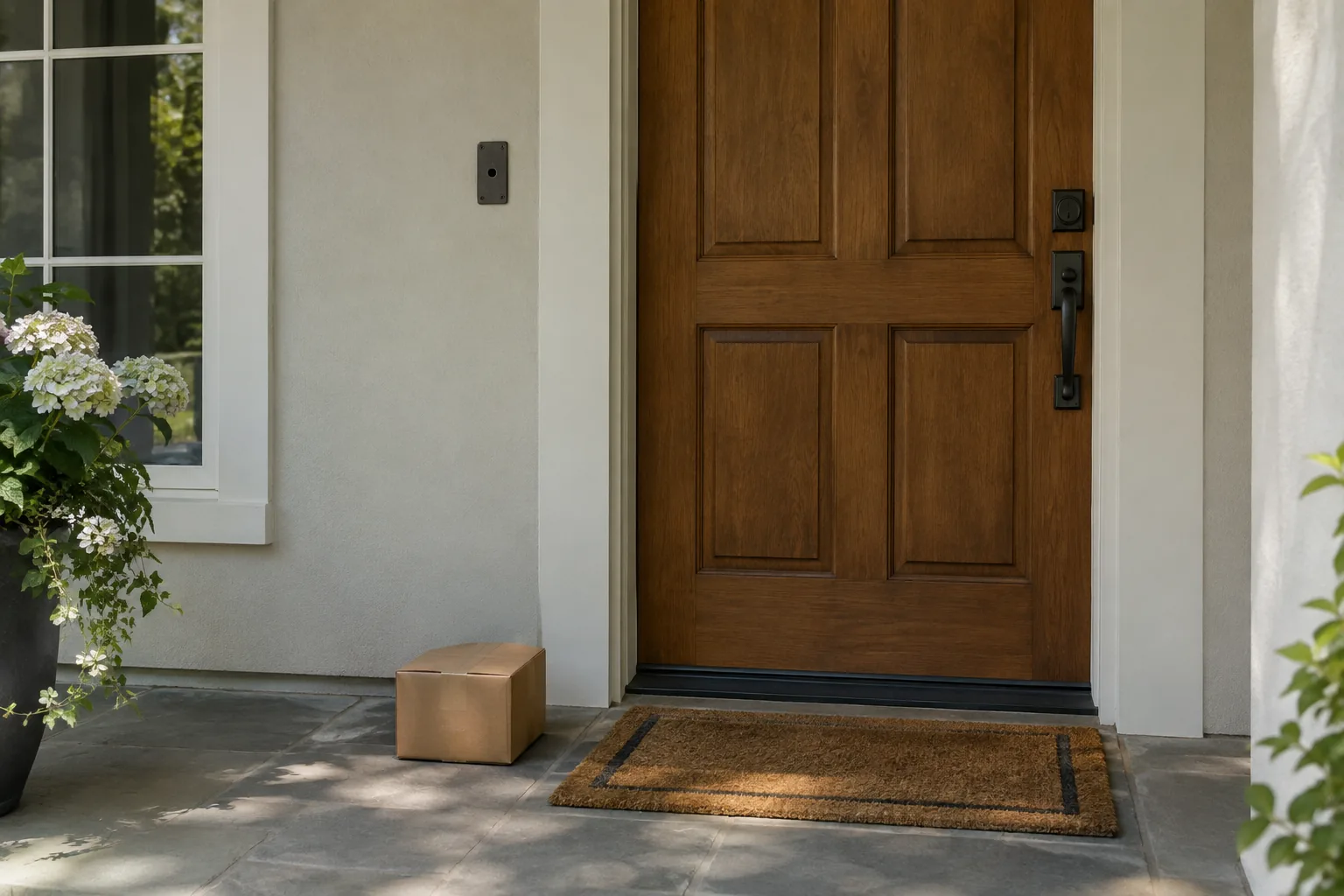
- Look at the viewing angle. A wide lens helps if packages land near the door rather than at eye level.
- Check for an indoor chime. A wireless indoor chime pairs with some doorbells, so you hear the ring inside without relying on the phone alone.
If you are also weighing a camera elsewhere on the property, our guide to solar powered outdoor security cameras covers power and placement checks for yard coverage. Browse the full range in Security Cameras & Doorbells.
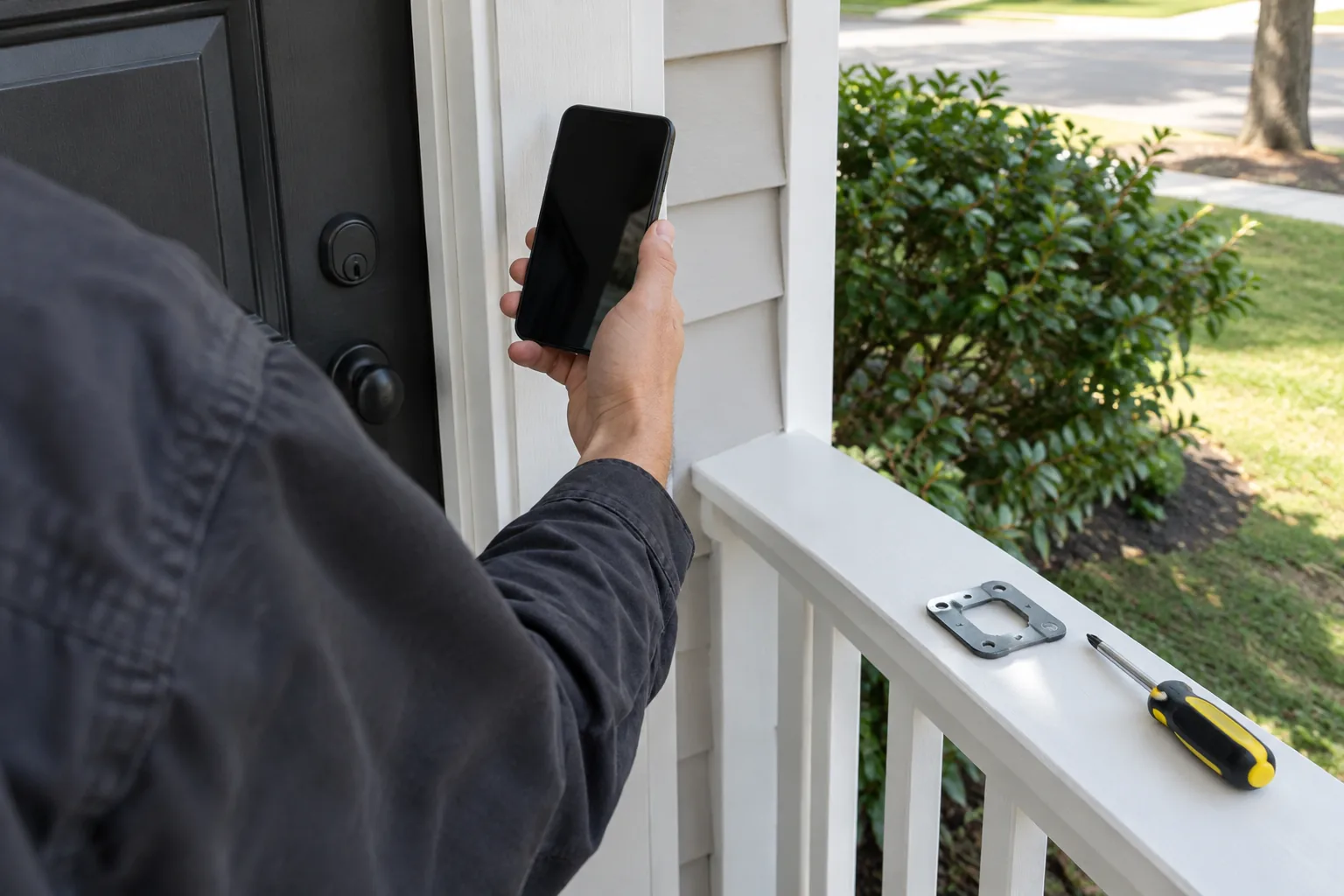
Setup checklist
- Charge the battery with the included USB cable before mounting.
- Insert the microSD card if your model uses one, following the manual for supported cards.
- Install the app and create your account.
- Connect the doorbell to your home Wi-Fi network and pair the indoor chime if one is included.
- Attach the mounting plate or bracket with the included screws, then set the doorbell on it.
- Walk past the door to trigger motion, then open the app to confirm the alert, live view and a saved clip.
- If your model offers motion zones or alert settings, adjust them to match the area you want watched.
- Test two-way audio with someone standing at the door.
Field note
Prepare the card as the manual describes, then play back one saved clip before you rely on it.
Common mistakes and a care routine
Mistakes to avoid
- Mounting where Wi-Fi is weak, which can lead to missed alerts.
- Pointing the lens at a street or a bright light, which fills the clip list with motion you do not need.
- Skipping a playback test after setup.
- Leaving a full card without checking whether the doorbell overwrites old clips; the manual lists the behavior.
Care routine
A short routine gives you regular points to check a local-storage doorbell. Set a reminder to repeat it.
| When | Task |
|---|---|
| Each month | Wipe the lens with a soft dry cloth and check the battery level in the app |
| Every few months | Play back a saved clip and check the card still records |
| After storms or app updates | Confirm Wi-Fi connection, live view and the chime |
Lighting at the entrance matters for night footage too. Our outdoor lighting plan shows how to layer security light so the subject is lit, and the motion sensor light guide covers power, range and settings for a light that comes on when someone approaches.
Frequently asked questions
Keep reading
 Security Cameras & DoorbellsDIY Home Security Systems: Cameras, Doorbells and Lights to Combine9 min read
 Home Utility & Detection DevicesWhat Is a Water Leak Detector? Types and Where to Place Them6 min read
 Smart & Ambient LightingWhat's in Fog Machine Liquid and How to Choose the Right Fluid8 min read